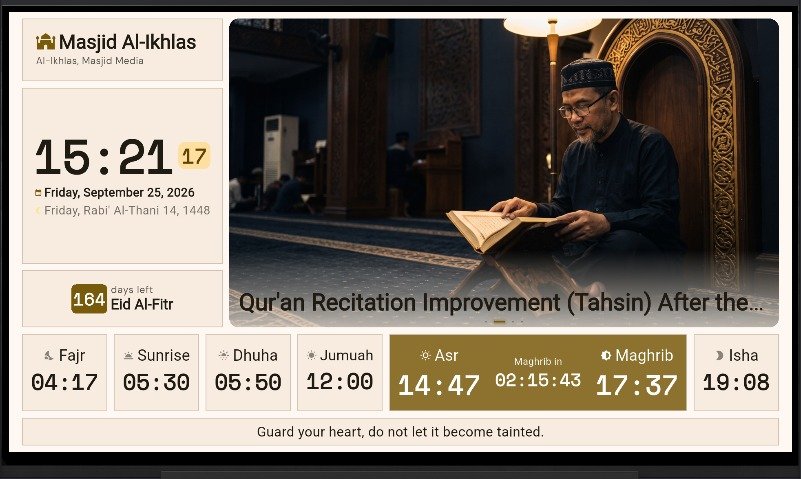
Device Pairing
Here are the steps to pair the Masjid Media mobile app with the Masjid Media TV application:
Before pairing, ensure the Masjid Media app is installed on your mobile device. The app can be downloaded via Google Play Store. Download Application
- Open the Masjid Media app, then select the "My Masjid" menu.
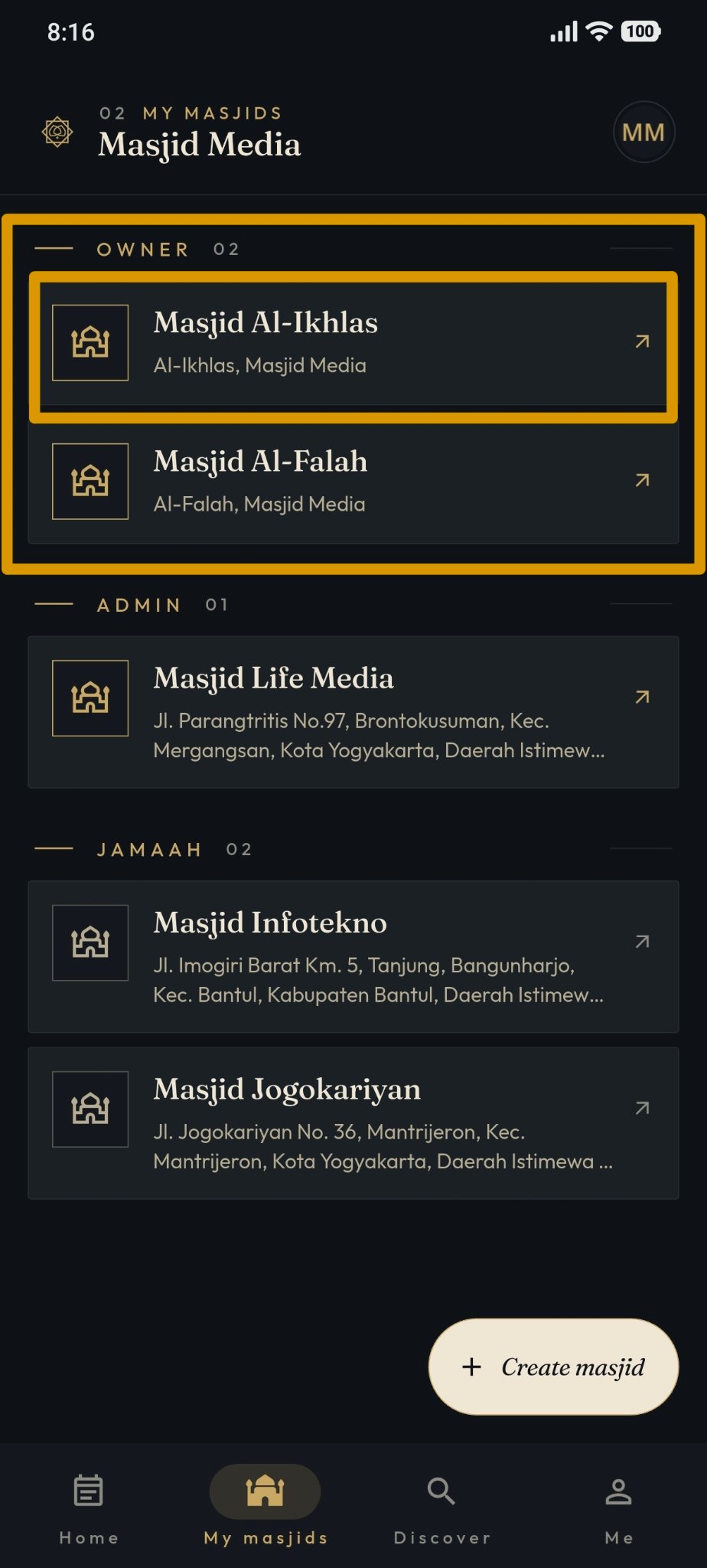
Select your masjid. If you haven't created a masjid profile yet, follow the setup guide here: Create Masjid
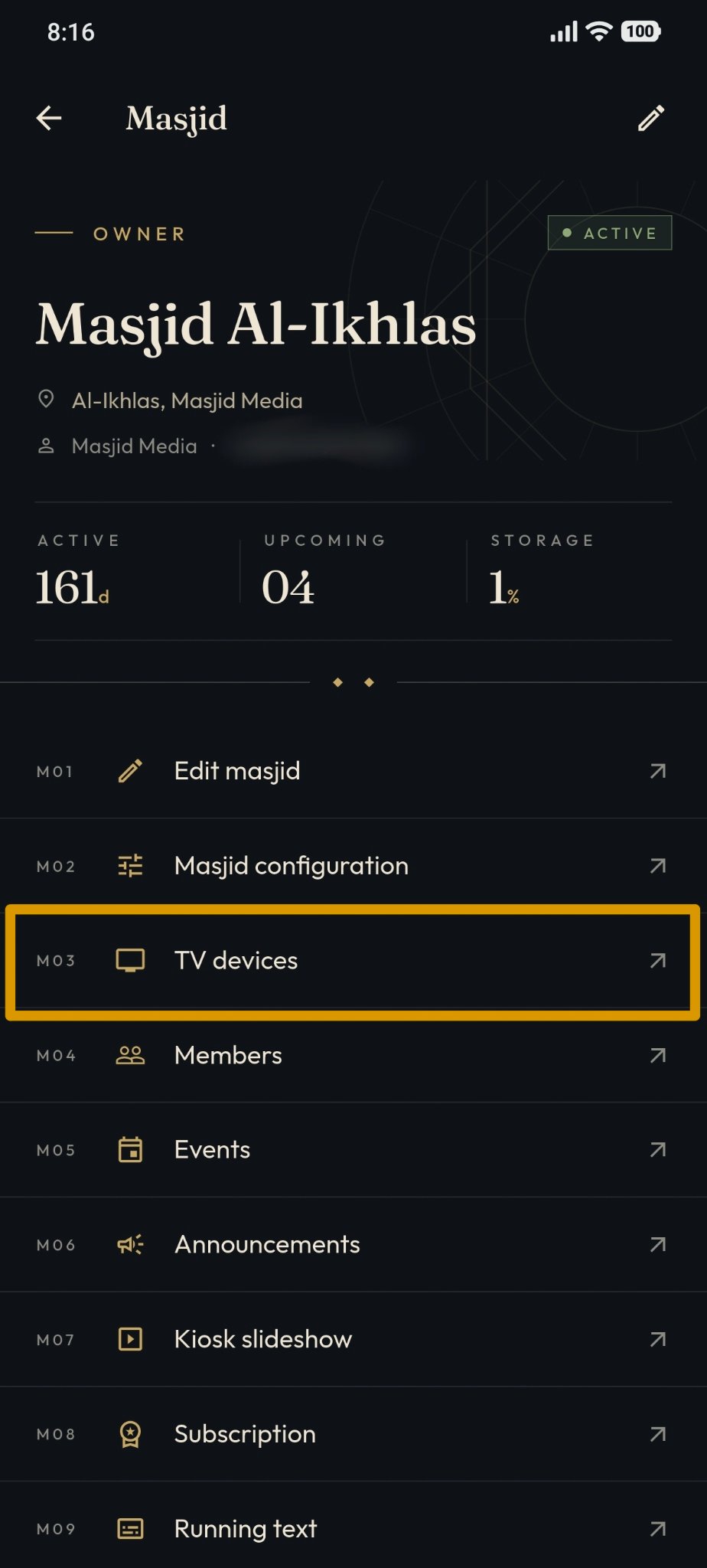
Select "TV Devices".
- On the "TV Devices" page, connected TV devices will be listed.
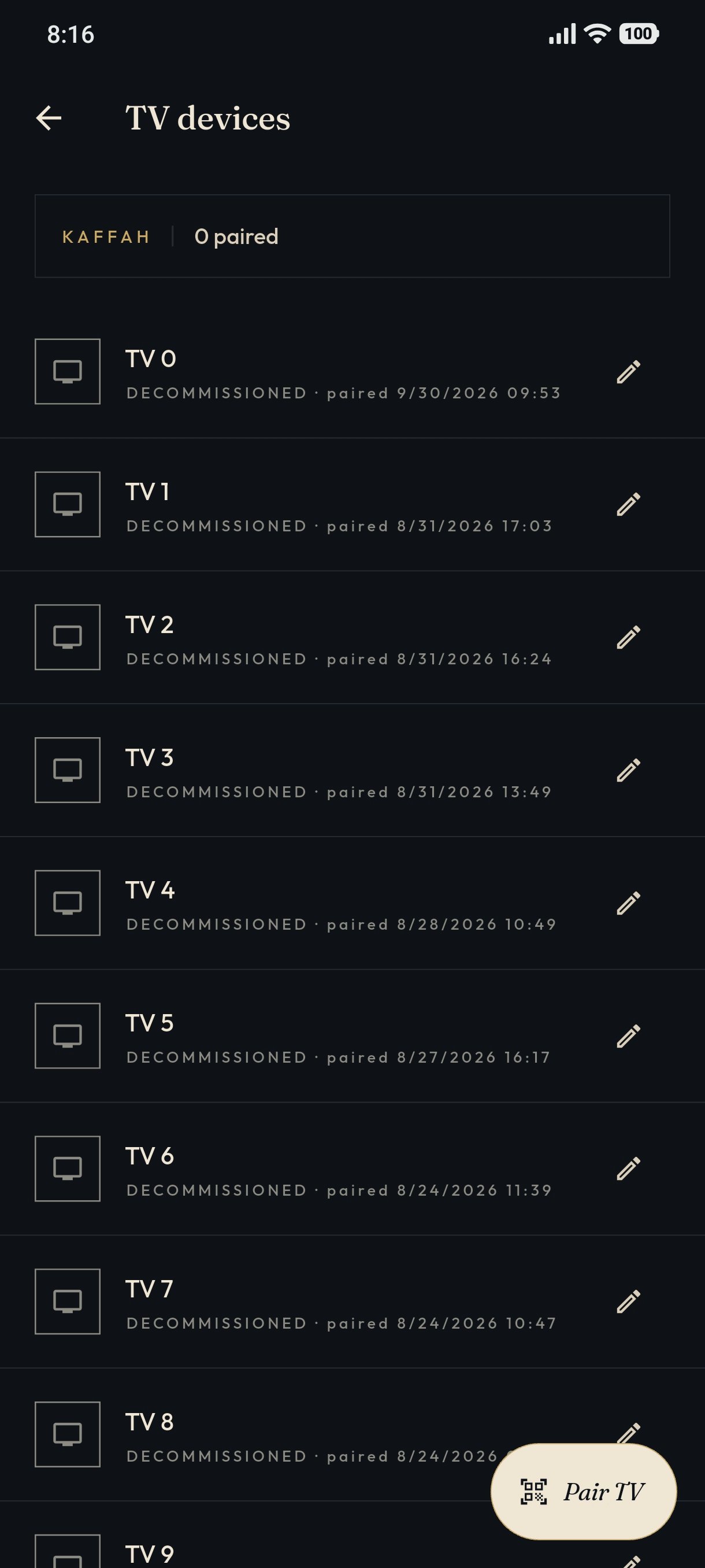
Press the "Pair TV" button, then point your mobile device camera at the TV screen running the "Masjid Media TV" app.
Scan the QR code displayed on the TV screen using the "Masjid Media" app.
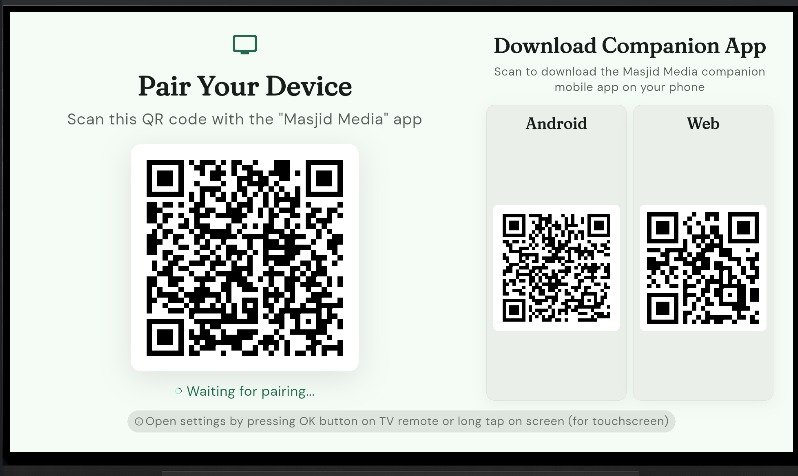
If the masjid is not discoverable yet, the app asks "Make this masjid discoverable?" before it pairs the TV. A TV can only show a discoverable masjid, so the masjid will be listed publicly with its address, location and contact details. Tap "Make discoverable" to continue, or "Cancel" to keep the masjid private. In that case the TV is not paired.
- Once pairing is successful, the app screen will appear as shown below.
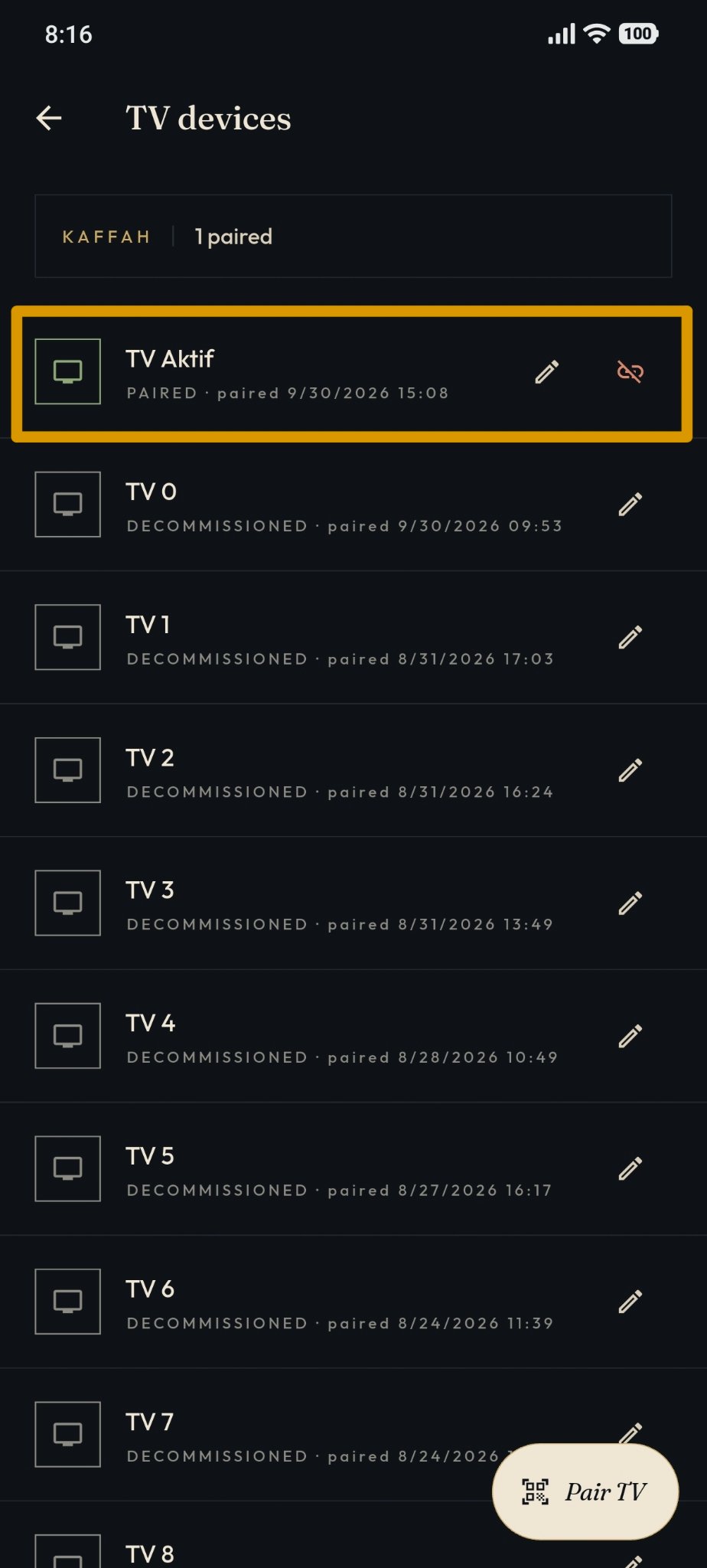
On the "TV Devices" page, you can rename your TV device by clicking the pencil icon or disconnect the device using the red icon.
After connecting successfully, your TV screen will be linked to your masjid profile.